
How to turn a chess screenshot into an analysis board
By Nikolas Burk10 min read
To analyze a chess position from a screenshot, capture the board, run it through a board scanner (an extension, a website or an app), check whose move it is, and open the result on an analysis board with an engine. Scanners differ mainly in what happens after recognition: some stop at a FEN string, others open an engine and explain.
I built one of these scanners, LearnChess, so this post is not neutral. It is, I hope, honest: where each tool stops, where ours fails, and why the choice of scanner matters less than what you do with the position once the engine has it. Prices and features below were checked on 2026-10-03.
What a board scanner actually does
A scanner takes an image and gives back a position. In between it does three things: it finds the board in the image, it classifies the 64 squares into "empty" or one of twelve pieces, and it writes the result as a FEN, the one-line text format every chess program understands. The board you then see is a re-creation from that FEN, not your screenshot.
Recognition is mostly solved for flat, on-screen boards: our own model reads 94% of a benchmark of 63 Reddit screenshots exactly right, and is confidently wrong on 6%. What is not solved, by anyone, is everything the image does not contain:
- Whose move it is. A picture of a board has no clock. Most scanners guess White, or read a hint such as a highlighted last move, and let you flip it. Get this wrong and the engine analyzes a different game.
- Castling rights and en passant. Nothing in a diagram says whether the king has moved. Scanners assume castling is still possible if the king and rook sit on their home squares, which is usually right and occasionally very wrong.
- Orientation. A board shown from Black's side looks, to a model, like a mirrored position. Good scanners read the coordinates on the board edge; without them, they guess, and you have to check.
- Piece sets and perspective. Screenshots from Lichess and Chess.com use clean, high-contrast sets that any model has seen thousands of times. A 3D board from a stream overlay, a hand-drawn diagram in an old book, or a photo of a wooden set taken at an angle are different problems, and most scanners that promise them are better at some than others.
So the practical rule: the scanner does the pieces, you do the side to move and the orientation. Every tool in the comparison below gives you a toggle for both.
A Chess.com or Lichess game in another tab
The easiest case. You are reviewing a friend's game or reading a forum post with a position in it, and you want an engine on it without rebuilding the position piece by piece.
With a browser extension the flow is three steps:
- Have the board visible in the current tab. Scroll so the whole board is on screen; a half-cropped board is the most common reason a read fails.
- Click the extension and capture. The extension screenshots the visible tab, finds the board, and reads it.
- Confirm and analyze. Check the orientation and the side to move, then open the position on an analysis board, or copy the FEN.
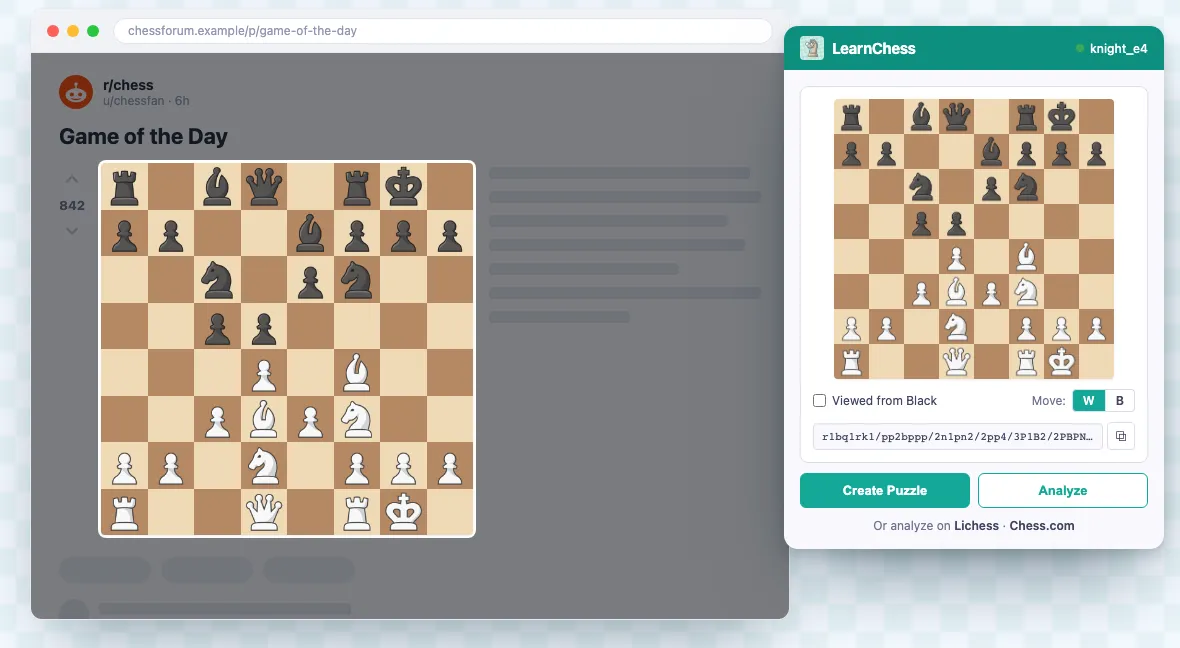
The board in that illustration came back as this position:
Two caveats. If the game is live and you are playing in it, an engine is cheating on both sites, and the scanner does not change that. And a finished game on Lichess or Chess.com already opens on the site's own analysis board, so a screenshot only helps for a position in a post, a chat, or a static image.
A position in a YouTube video or a Twitch stream
Pause the video with the board filling as much of the frame as you can, then capture. Streams add two complications.
First, overlays. Commentary streams often show the board inside a camera frame with evaluation bars, player cams and chat next to it. The scanner has to find the board among all that, and the smaller the board, the more a blurry pawn looks like a bishop. Full-screen the video before you capture, or crop the screenshot to the board.
Second, the "whose move" fix. In a video you usually know whose move it is because you just watched it. The scanner does not. If the last move is highlighted on the board, a good scanner reads that and sets the side to move for you. If it is not, you set it yourself, and the check is simple: ask whether the position makes sense with the other side to move. In this position from the Fried Liver, the queen has just arrived on f3 with check:
Most wrong-side mistakes are quieter: a middlegame looks fine either way, and the engine will happily report that the side you accidentally gave the move to is winning. When the evaluation surprises you, check the toggle before you believe the number. You can walk through this whole line in the Fried Liver guide.
A book page, a magazine or a real board
Here the honest answer differs by tool, and it is the one place where I would not send you to ours.
A printed diagram photographed flat and square-on is a 2D board with an unusual piece set. Chessvision.ai built its mobile app and ebook reader specifically for this, and it is the most mature option for printed chess books. Mated and ChessSolve both say they accept photos of diagrams and real boards. LearnChess reads on-screen 2D boards, screenshots from your phone included, but not camera photos of a physical board or a printed page; the model is trained on flat digital boards and will tell you it could not read the image.
A real board from a phone camera is the hardest input in this list. Perspective, shadows, and pieces hiding the squares behind them defeat models trained on diagrams. If you want to try, the advice is the same everywhere: shoot from directly above, fill the frame with the 64 squares, and keep the light even. Expect to fix a square or two by hand afterwards.
Is there an app that turns a chessboard screenshot into an analysis board?
Yes, several, and they stop at different points. The question that separates them is not "can it read a board" but "what happens after the FEN". Checked 2026-10-03; prices are the ones shown to a US visitor and vary by region.
| Tool | Input | After the FEN | Free? | Platforms |
|---|---|---|---|---|
| Chessvision.ai | screenshots, video frames, PDF ebooks, printed diagrams; the mobile app scans prints and 2D sources | an embedded Lichess analysis board with Stockfish, one click to full Lichess analysis; a separate Library product saves positions | extension scans and the analysis board are free; mobile scans are limited; membership $5.99/month or $45.99/year on the US App Store | browser extension, iOS, Android, ebook reader |
| Mated | screenshot, photo or cropped video frame, uploaded on the site | FEN, Stockfish best move, and a plain-English explanation of why | free, no account | web |
| ChessSolve | screenshots and, it says, photos of real boards | FEN, then Stockfish evaluation and best moves | free: 50 positions a day, one best move; Plus $7/month for 500 a day; Premium $12/month unlimited | web; a Chess.com and Lichess extension for live arrows |
| chesstools.app | board screenshot or photo | FEN and a rendered board, with an "Open in Lichess" button for the engine | no pricing shown, appears free | web |
| LearnChess (mine) | a tab via the Chrome extension; upload, paste or drop on the web; photo library in the app; 2D boards only | opens a Stockfish analysis board with the AI coach, FEN included; can save the position as a puzzle | web board: 3 reads without an account, 5 a day on a free account, unlimited on paid; extension needs a free account; the engine is free on every plan | Chrome extension, web, iOS, Android |
Ranked by job rather than overall:
- You want the FEN and nothing else, to paste somewhere: chesstools.app or the Chessvision extension, no account needed.
- You want a best move and a reason, right now, on your phone's browser: Mated.
- You read printed chess books: Chessvision.ai's ebook reader is the only tool here built for that.
- You want the position opened on an engine board you can keep working on, with someone to explain it: Chessvision.ai or LearnChess, and the difference is the coach, which is what I built ours for.
Where ours fails: physical boards and printed pages, as above; small boards in a busy stream layout; and the occasional confident misread, about one screenshot in sixteen on our benchmark, which is why the confirm step shows you the board before the engine sees it.
After the FEN: the part that improves your chess
The scanner saved you a minute of setup. What you do in the next ten minutes is the whole point.
Paste it into a free engine. Every FEN opens on Lichess's board editor or Chess.com's analysis page, and Stockfish gives you an evaluation and a best line within a second. That is where most people stop, and where the position stops teaching you anything: a number and a move you would not have found tell you what, not why.
Ask why before you ask what. Before you read the engine line, write down what you think the position is about: who has the better minor piece, which pawn is weak, where each king wants to be. Then compare. The gap between your note and the engine's line is the thing to study, and it is the same gap that keeps a player stuck at a rating for years. (If that sounds familiar, Stuck at 1200 is about exactly that gap.)
Make a puzzle from it. If the position has a clear best move, with a tactic or a plan behind it, keep it. On LearnChess a captured position becomes a community puzzle with one click; it goes into your own set, and other players can solve it too. A position you found in a stream and solved yourself sticks far better than one served from a database.
If you want this done for you: the LearnChess extension, web upload and app take a screenshot straight to the analysis board, where Stockfish runs for free and the AI coach answers "why is this winning" in plain words. It is not the only scanner, as the table shows, and for printed books or real boards it is not the right one. For the screen in front of you, it is one click from the position to the explanation, which is what I wanted when I was the one stuck at 1600. For the wider picture of which chess tools do which job, see the best chess apps in 2026.
Frequently asked questions

Nikolas Burk
Founder of LearnChess
I plateaued around 1600 on Lichess and built LearnChess to understand my own games more deeply: engine lines in plain English, questions about the board in natural language, and a structured path of lessons, practice and tests. On the blog I share what I learn along the way.
More from the blog
- Tools & comparisons
Chess.com vs Lichess vs Chessable for improving: which one, for what
What each site is actually good for if you want to improve, in one table: playing, puzzles, analysis, openings, explanations. Prices checked November 2026.
12 min read
- Improver's playbook
How to stop blundering in chess: a check that survives the clock
Blunders are a looking problem. A three-question check you can run on every move, two positions to practice it, and why blitz keeps it from sticking.
10 min read
- Improver's playbook
How to analyze your own chess games in 20 minutes (without letting the engine do the thinking)
A three-pass routine for analyzing your own chess games: notes first, engine as grader, one sentence per mistake. For 1200–1800 players short on time.
10 min read